How-To Guides
Instagram Video to GIF: Trim and Convert Guide
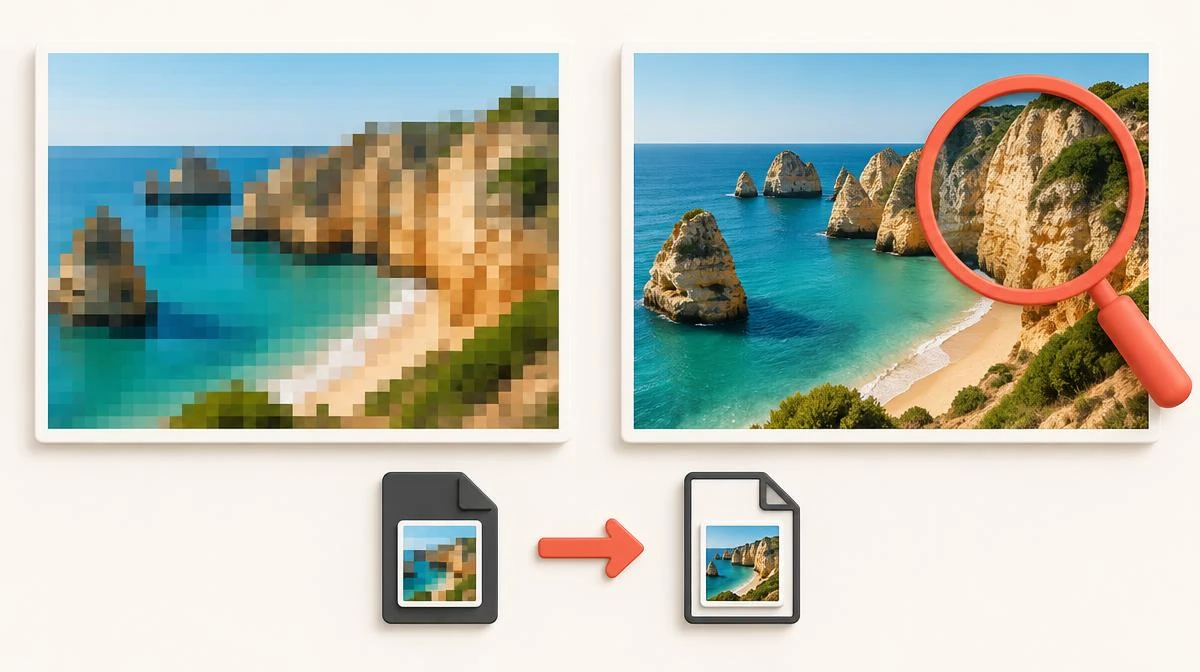
Instagram video to GIF conversion starts with a downloaded MP4 file. Save the video to your device first, then trim the moment you need and convert it with a free tool. The whole job takes a few minutes.
People search this task many ways. Queries like convert Instagram video to GIF or trim a downloaded reel describe the same workflow. Some want to make a clip from an Instagram video. Others want to turn a reel into an audiogram for a podcast page. This guide covers each variation with concrete steps for phone and desktop.
Step one: get the video onto your device
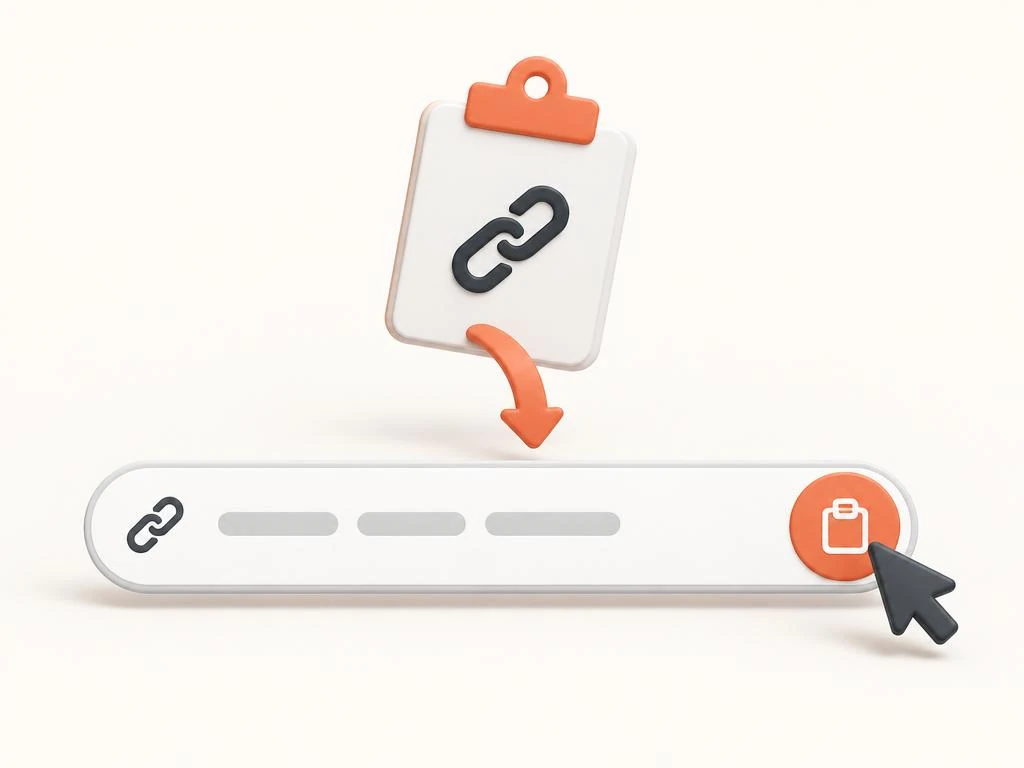
Every trimmer and converter needs a local file. The rule is simple: download Instagram video first, then edit. Instagram does not hand editors a direct file, so the first move is saving the video itself.
Open the post and copy its public link. Save the MP4 through the Instagram Reels downloader or the tool matching the post type. The file lands on your device at the resolution Instagram serves publicly.
For the instagram video to GIF path, this file is the starting point. Keep the original untouched. Make every trim, GIF and conversion from a copy, so a bad edit never costs you the source file.
Trim the video to the moment that matters
Trimming cuts the clip to the exact seconds you want. Shorter clips convert faster, share easier and make smaller GIFs.
Every platform has a built-in option. Trim video on iPhone inside Photos, or trim video on Android with the Google Photos trim controls. Tap Edit, drag the timeline ends, and save a new clip.
To trim video Windows users open the Photos app and choose Trim. To trim video Mac owners use QuickTime Player, where the QuickTime trim handles appear under Edit.
Cut tighter than feels necessary. A GIF or clip that starts half a second before the action feels sluggish, and every extra second inflates the file size.
- iPhone: Photos, Edit, drag timeline ends, Save as New Clip.
- Android: Google Photos, Edit, Trim, Save copy.
- Windows: Photos app, Trim, Save a copy.
- Mac: QuickTime Player, Edit, Trim, yellow handles.
Convert the trimmed clip to a GIF
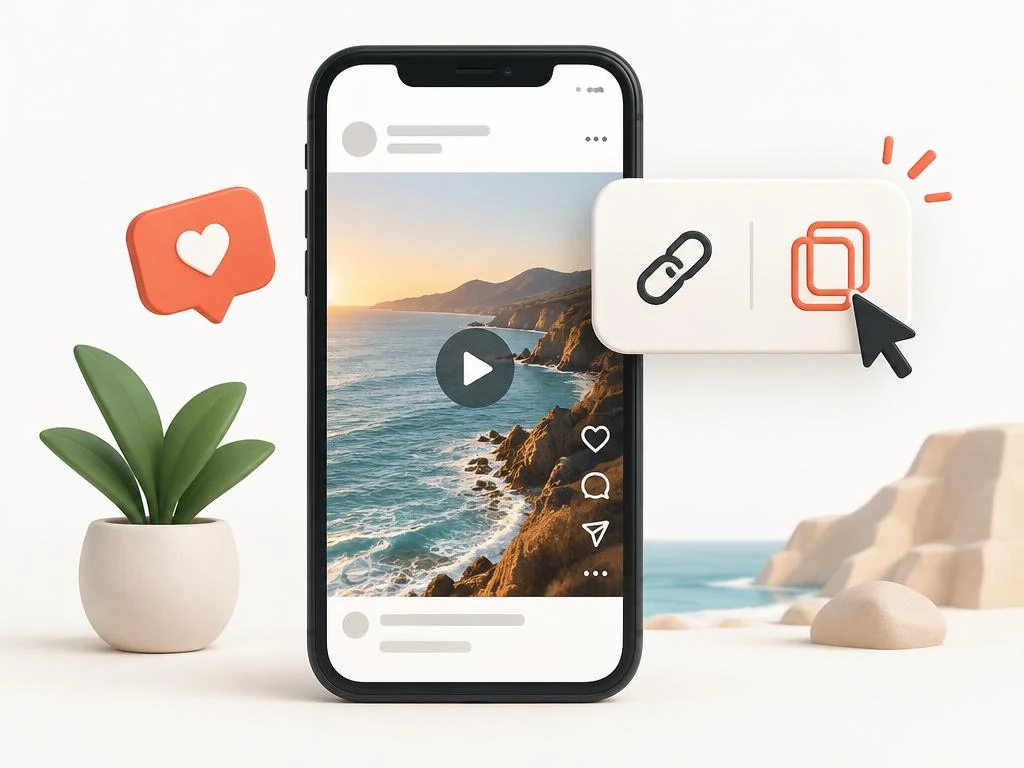
The instagram video to GIF workflow suits moments under six seconds that loop well. Reactions, quick demos and one-line visual jokes are the classic candidates.
An Instagram GIF maker is just a video to GIF converter in a browser. Tools like Flixier, Ezgif or Adobe Express accept an MP4, let you set start and end points, and export a GIF. The MP4 to GIF conversion takes seconds for a short clip. Upload your trimmed clip, set the loop section, and download the result.
Watch the output size. GIFs balloon fast because the format stores every frame. Keep the clip short and drop the width to 480 pixels or less. Accept fewer frames per second when the tool offers it.
Consider MP4 or WebP instead when quality matters. Many platforms that accept GIFs also accept short looping videos, which look sharper at a fraction of the size.
- Keep the GIF under six seconds.
- Resize to 480px wide or smaller.
- Drop to 15 frames per second if the tool allows.
- Prefer looping MP4 where the platform supports it.
Extract audio for audiograms and podcasts
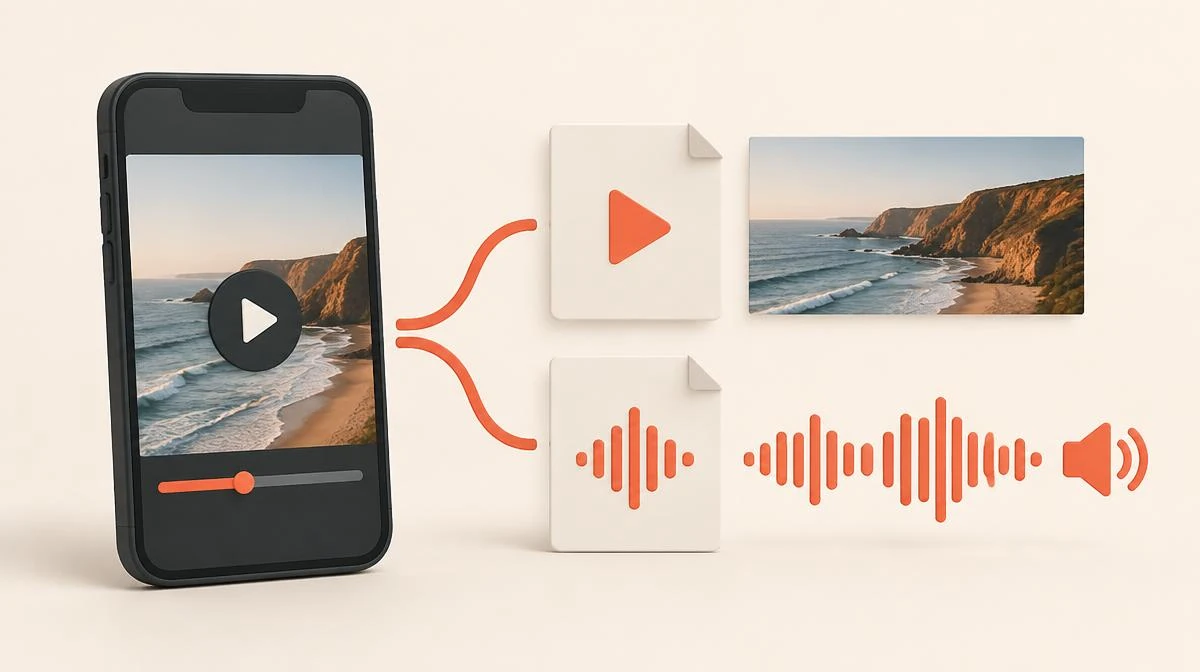
Sometimes the sound is the point. A quote, a song snippet or a spoken tip can live on its own as an audio file.
Save the audio track directly with the Instagram to MP3 converter when you only need sound. The tool pulls the audio from a public video link and hands you an MP3, no video file required.
For an audiogram, pair that MP3 with a static image and a waveform animation. Free tools like Headliner or Canva combine them into a shareable square video.
Already have the MP4 saved? Most editors can extract audio from video files locally, which keeps everything offline.
Change formats only when you need to
The downloaded MP4 already plays almost everywhere. Convert only when a specific platform or tool rejects the file.
MP4 to WebM and MP4 to MOV conversions come up for editing software, while some older tools want AVI. Free converters like CloudConvert or HandBrake handle these jobs. HandBrake runs offline and gives full control over resolution and bitrate.
Match the target to the destination. Social platforms want MP4 with H.264 video and AAC audio. Messaging apps often cap file size, so lower the resolution before sending.
Avoid repeated conversions. Each re-encode loses a little quality, so convert once from the original file rather than converting a conversion.
| Target | Best format | Why |
|---|---|---|
| Social reposting | MP4 (H.264 + AAC) | Accepted everywhere |
| Chat and messaging | MP4, reduced resolution | Stays under size caps |
| Editing software | MOV or high-bitrate MP4 | Preserves editing quality |
| Reaction loops | GIF or looping MP4 | GIF for compatibility, MP4 for quality |
Keep quality through every step
Quality loss creeps in at three points: the download, the trim and the conversion. Control each one and the final file stays sharp.
Start from the best available file. The downloader serves the resolution Instagram provides publicly, which is the ceiling for everything after.
Trim with tools that cut without re-encoding when possible. QuickTime and Google Photos both save trimmed copies without a full re-encode for simple cuts.
Convert at the same resolution as the source unless size forces you down. Upscaling a small video never adds detail, and downscaling is the one legitimate reason to change resolution.
Edit and share within your rights
Trimming and converting your own content is always fine. The file is yours, and every use is yours to choose.
Other people's content needs permission before reuse. A trimmed clip of someone else's video is still their work. Reposting it without consent can bring a copyright complaint.
Fair use is narrow and fact-specific. Commentary, criticism and parody sometimes qualify, but reposting a funny moment with no added context usually does not.
When in doubt, ask the creator. Most respond quickly, and a credited share with permission beats a takedown.
Common questions about clips and GIFs
How do I convert an Instagram video to GIF?
Save the video as an MP4 first and trim it to under six seconds. Then upload the clip to a free GIF converter like Ezgif or Flixier. Set the loop section and download the GIF.
Can I trim Instagram video without downloading it first?
No practical editor works directly from an Instagram link. Download the MP4 first, then trim it in your phone's gallery app or a desktop player.
Why is my video to GIF converter output so large?
GIF stores every frame as an image, so size grows with length, width and frame rate. Shorten the clip, shrink the width to 480px, or lower the frame rate to 15fps.
How do I turn an Instagram video to MP3 audio only?
Use the Instagram to MP3 converter with the video link to save the sound directly. You can also extract audio from a downloaded MP4 with most editors.
Does converting cause quality loss in the video?
Each re-encode loses a little quality. Convert once from the original file, keep the source resolution, and avoid converting a file that was already converted.
Is it legal to make a reel to GIF from other people's videos?
Only with the creator's permission or a clear fair-use case like commentary. Reposting someone else's moment as a GIF without consent risks a copyright complaint.