How-To Guides
How to Back Up Instagram: 2026 Guide
How to back up Instagram starts with the official data export. Request it from Accounts Center and save the ZIP file somewhere outside your phone. Instagram emails you a download link, usually within 48 hours.
People phrase how to back up Instagram many ways. Searches like download Instagram data, Instagram backup, save all my Instagram photos, or archive my account all mean the same job. This guide walks through the official export step by step. It explains what the file contains, what it leaves out, and when saving single posts in full quality is the better route.
Why an Instagram backup is worth an hour of your time
Your Instagram account holds years of photos, videos, messages and follower connections. All of it sits on someone else's servers, behind one password and one email address.
Account loss happens in ordinary ways. A hacked account gets wiped by the attacker. A forgotten password plus a dead email address leaves you locked out. A suspension, fair or mistaken, can cut access without warning.
For creators and small businesses, the stakes rise. A portfolio, a customer conversation history, or a product catalog that exists only inside Instagram is a single point of failure. A backup turns a disaster into an inconvenience.
- Hacking: attackers often delete content before the owner regains control.
- Lockouts: lost email access can make account recovery impossible.
- Suspensions: appeals take time, and content stays unreachable meanwhile.
- Device loss: a broken phone takes unsaved originals with it.
Request the official Instagram data export
Instagram's built-in export is the most complete backup method, and it needs no third-party tool. Instagram names the feature Download your information, and it lives inside Accounts Center.
Open Instagram and go to your profile. Tap the menu icon, then Settings and privacy, then Accounts Center. Choose Your information and permissions, then Download your information, and tap Download or transfer information.
Select your Instagram account and decide between all available information or a custom selection. A full backup should include posts, stories, reels, messages, comments, likes, and your followers and following lists.
Pick your format and quality before submitting. HTML opens in any browser and is easiest to browse. JSON suits developers and data tools. Set media quality to High, choose a date range or All time, and confirm the request.
- Profile menu, then Settings and privacy, then Accounts Center.
- Your information and permissions, then Download your information.
- Choose the account, the data types, the format, and High media quality.
- Submit and wait for the email with the download link.
What the export ZIP contains, and what it leaves out
The export arrives as one or more ZIP files linked from an email. Instagram states the preparation can take up to 48 hours. The download link stays valid for a limited window, so save the file promptly.
Inside you find your photos, videos, reels and stories as media files, plus structured data for messages, comments, likes, searches and settings. The HTML version presents this as browsable pages; the JSON version as data files.
The limits matter as much as the contents. Your followers list exports too, and the archive holds your own content only. Comments from other people are not part of the file. Neither are photos others tagged you in, nor content from accounts you follow. The Instagram look and feel is gone too: you get files and data, not a working copy of your profile.
| Included in the export | Not included |
|---|---|
| Your posts, reels, stories and videos | Other people's comments on your posts |
| Your messages and your own comments | Photos others tagged you in |
| Followers and following lists | Content from accounts you follow |
| Likes, searches and account settings | The Instagram interface itself |
| Profile information | Live access after account loss |
Store the backup so it actually protects you
A backup that sits in your Downloads folder on the same phone as your account protects against almost nothing. Move the ZIP to at least two places that do not depend on each other.
One practical answer to how to back up Instagram safely uses two copies. Keep one on an external drive or computer and one in cloud storage. Treat the file as sensitive: it contains your messages, your email address and your phone number.
Once you know how to back up Instagram, keeping it current is easy. Set a repeating reminder. A quarterly export keeps the archive current, and each new request takes only a few minutes once you know the path.
- Copy one: an external drive or a computer folder you control.
- Copy two: a cloud storage account with its own password.
- Cadence: repeat the export every three months.
- Care: the ZIP contains private data, so store it like a document, not a photo.
When saving single posts beats a full export
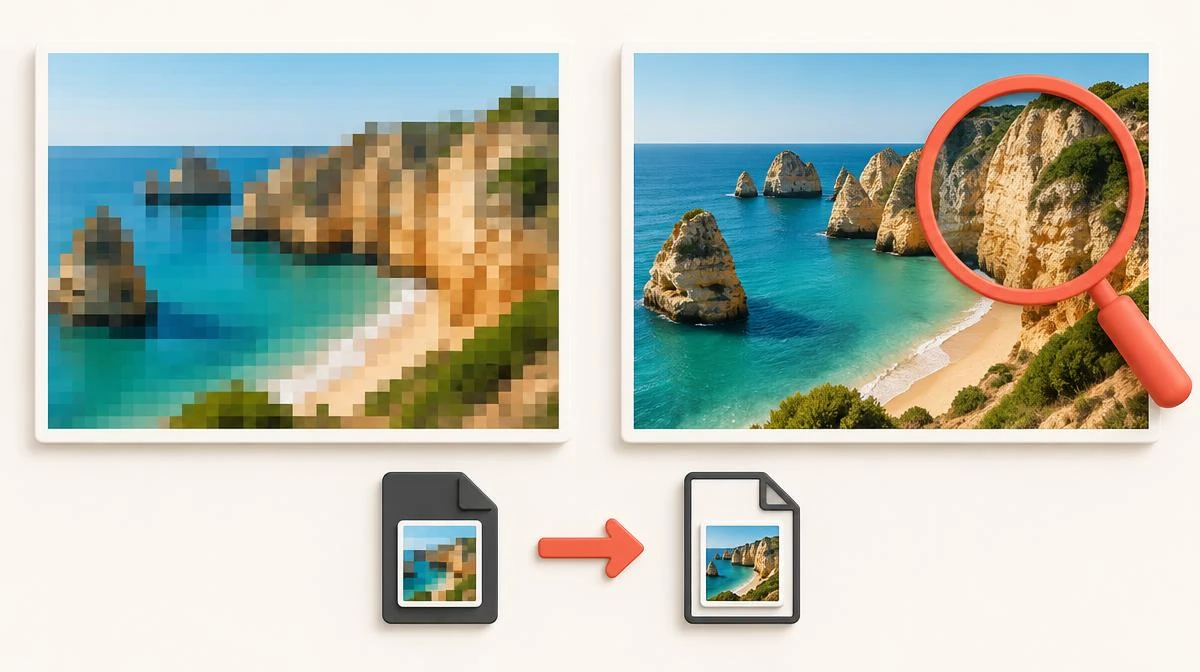
Anyone learning how to back up Instagram should know the official export is thorough but slow. Its media files are not always the highest served rendition. When you need a handful of important posts in full quality, saving them individually is the faster route.
On phone or desktop, open the post and copy its public link. Save the file through the Instagram Reels downloader or the matching tool for the post type. The file you receive is the copy Instagram serves publicly, at its available resolution.
This route works on iPhone, Android and desktop for your own public posts and for permitted saves of other public content. It complements the export rather than replacing it. The export covers everything at once, while individual saves give you the best file for the posts that matter most.
Back up before deleting or deactivating your account
A backup before deleting is essential. A decision to delete account access is permanent after the grace period, and the content goes with it. Request the export first, wait for the email, download the ZIP, and verify it opens before you touch the delete button.
Deactivation is gentler: your profile hides until you log back in. Even then, an export is cheap insurance against a lockout you did not plan.
Check the archive before relying on it. Open the ZIP, confirm your photos and videos play, and confirm the file count looks right for your account size. A backup you never opened is a hope, not a backup.
Your backup, your content, other people's rights
Everything in your export is content you created or data about your own activity, so keeping it is straightforward. The picture changes when you save other people's posts.
Saving a public post for personal reference is generally low-risk, but the creator's copyright still applies. Republishing someone else's photo or video as your own is infringement. That holds whether the file came from an export, a downloader, or a screenshot.
For your own content, a backup also protects your reuse options. Creators who repurpose their reels for TikTok or YouTube Shorts should start from the cleanest file they have. A local archive guarantees that file exists.
Instagram backup: common questions
How to back up Instagram accounts step by step?
Go to Settings and privacy, then Accounts Center, then Your information and permissions, then Download your information. Choose your data types, pick HTML or JSON, set media quality to High, and submit. Instagram emails a download link, usually within 48 hours.
How long does the Instagram data export take?
Instagram states preparation can take up to 48 hours, though smaller accounts often finish sooner. The emailed download link expires after a limited window, so save the ZIP promptly when it arrives.
Does the Instagram export include my messages?
Yes, if you select messages when configuring the export. The archive contains your side of conversations as data files. Treat the ZIP as sensitive, because it also holds your email address and phone number.
Can I download all my Instagram photos at once?
The official data export is the only built-in way to download everything at once. It includes your photos, videos, reels and stories as media files inside the ZIP. For a few specific posts in full served quality, saving them individually by link is faster.
Is the exported media full quality?
Set media quality to High when requesting the export for the best available files. Even so, the export rendition is not always identical to the publicly served file. Important single posts are worth saving individually.
Should I back up before I delete account access permanently?
Yes, always. Request the export, wait for the email, download the ZIP, and open it to confirm your content is inside. Only then delete or deactivate, because deletion is permanent after the grace period.